User guide
Setting up and using your ModeBRIDGE. Installing it in the van is covered in the installation guide, and quick answers are in the FAQ.
- Getting started
- The ModeBRIDGE unit
- How the app connects
- Home
- Climate
- Lights and awning
- Tanks and water
- Battery and power
- Notifications
- Automations
- Updates, Wi-Fi and sharing
- If something isn’t working
- Regulatory information
Getting started
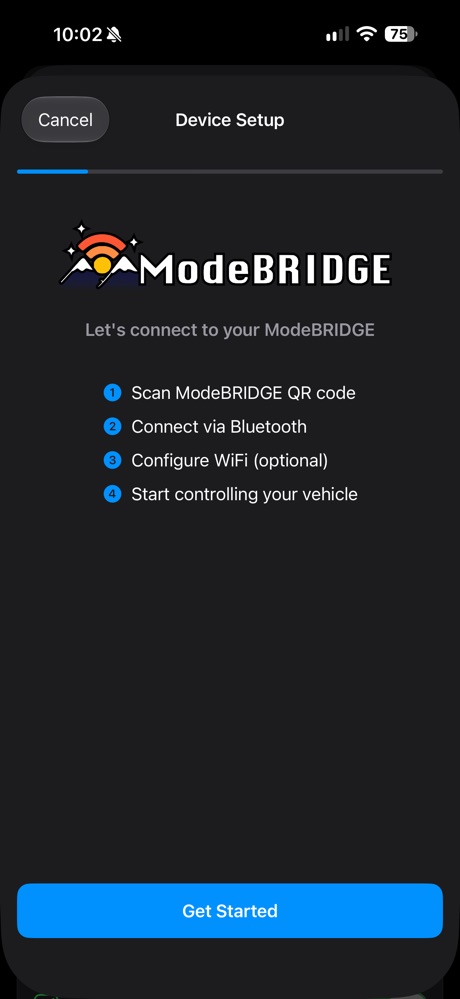
You'll need your phone (iPhone or Android) and the ModeBRIDGE installed and powered in your van. The label on the ModeBRIDGE shows your device ID at the top, a QR code, and an 8-character device password at the bottom. You use the device password to add the ModeBRIDGE in the app, and to join its AP mode network. (Older versions of the app call it the secret key.)
- Install the app. On Android, get it from Google Play. On iPhone, use this link; it also comes with your ModeBRIDGE.
- Sign in with your email, or on iPhone with Sign in with Apple.
- Stand in or next to the van with Bluetooth turned on, and tap Get Started.
- Tap Scan ModeBRIDGE QR code and point your camera at the label. Or tap Enter Device ID Manually and type the ID from the label.
- The app connects over Bluetooth by itself. If it can't, tap No Bluetooth? Enter device password manually and type the device password from the label.
- Tap Link Device to add the ModeBRIDGE to your account. This turns on remote access, notifications and sharing.
- Tap Configure WiFi and choose your van's Wi-Fi network, so you can reach the van when you're away. You can skip this and use Bluetooth only, then set up Wi-Fi later. The network must be 2.4 GHz; see What kind of Wi-Fi network does ModeBRIDGE need?
The ModeBRIDGE unit

The lights
- Green (power): on whenever the ModeBRIDGE has power.
- Blue (Bluetooth): steady when a phone is connected over Bluetooth. Blinking means no phone is connected; it's ready and waiting.
- Yellow (Wi-Fi): steady when the ModeBRIDGE is on your van's Wi-Fi. Blinking means it isn't on a network yet, for example while your router is switched off.
- Alternating blue and yellow: an update is being installed. Leave the power on until it finishes.
- Blue and yellow flashing quickly together: the Mode Button has been held for 3 seconds (see below).
The Mode Button
- Short press: does nothing.
- Hold for 3 seconds, then let go: turns AP mode on or off. Both lights flash quickly once you've held it long enough. Your van's Wi-Fi settings are kept, and Bluetooth stays on the whole time.
- Hold for 10 seconds: erases the ModeBRIDGE's saved Wi-Fi network. Both lights go steady and it restarts in AP mode. Then set up Wi-Fi again from the app (see Updates, Wi-Fi and sharing). Your account, sharing and automations are kept.
AP mode (the ModeBRIDGE's own Wi-Fi network)
In AP (access point) mode, the ModeBRIDGE makes its own Wi-Fi network. Join it from your phone to control the van over Wi-Fi when there's no router in the van; Wi-Fi usually reaches further than Bluetooth. Once your phone is on it, the app switches to it automatically. The network is named after your device ID (it starts with modebridge-), and you join it with the device password on the label. AP mode turns on:
- when no Wi-Fi network has been set up yet,
- when you hold the Mode Button for 3 seconds and let go, or
- when you choose Access Point Mode in the app.
In AP mode the ModeBRIDGE isn't on the internet, so remote access and notifications pause until it's back on your van's Wi-Fi. To turn AP mode off, hold the Mode Button for 3 seconds and let go again.
The reset button
The reset button is recessed in the side of the ModeBRIDGE; press it with a pin or a straightened paper clip. It restarts the ModeBRIDGE, the same as turning the power off and on. Nothing is erased: your Wi-Fi settings, account, sharing and automations are all kept. Use it if the ModeBRIDGE stops responding.
How the app connects
The app automatically uses the best connection available, so you never have to choose. It has three:
- Bluetooth when you're in or next to the van. No network needed.
- Wi-Fi when your phone is on the same network as the ModeBRIDGE.
- Remote access over the internet from anywhere, while the ModeBRIDGE is on a Wi-Fi network with internet.
As you walk away from the van or come back, it switches between them on its own. The connection in use is shown at the top left of the Home tab.
Home
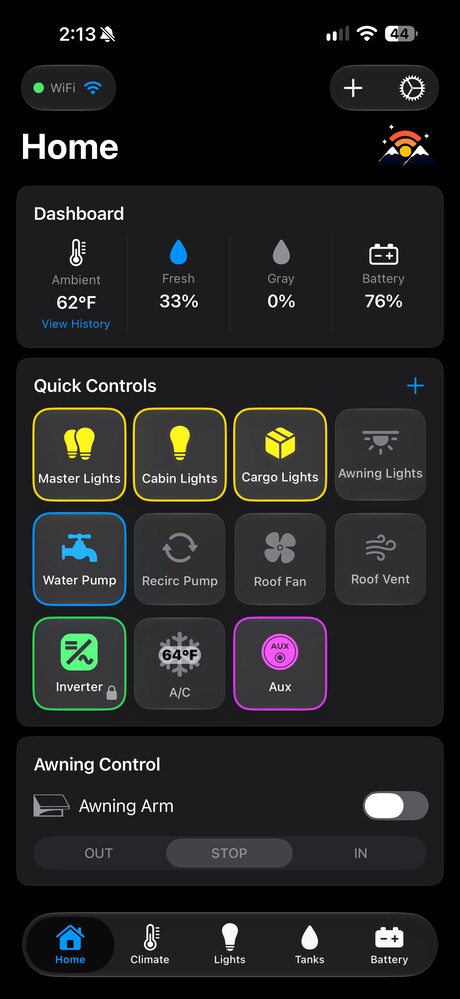
Home shows temperature, tank levels and battery at a glance, with Quick Controls for the switches you use most.
- To choose and arrange your Quick Controls, tap + on the Quick Controls card.
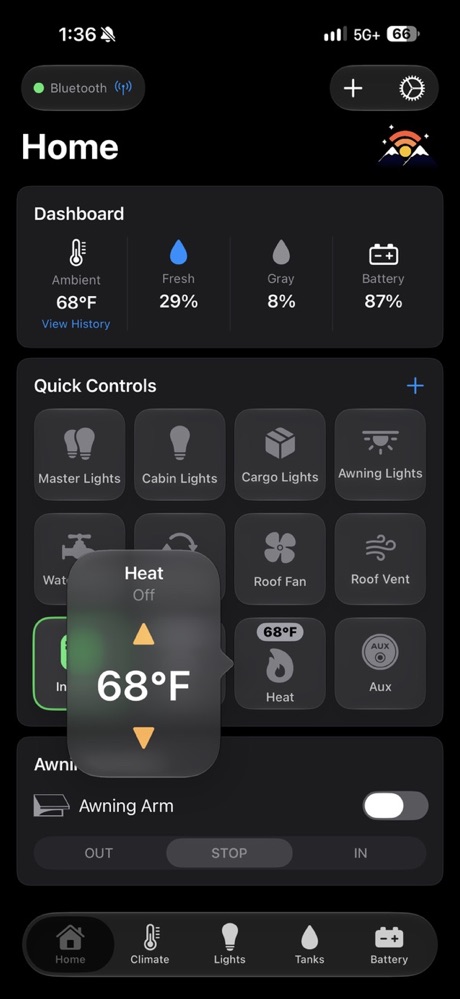
- Tap Cool or Heat to turn it on or off; the tile shows the temperature it's set to. Touch and hold it to change that temperature with the up and down arrows. Changing the temperature doesn't turn it on.
- The flame on the Heat tile flashes while the furnace is running. If it keeps flashing after you turn the heat off and the tile reads Heater On, the ModeCom screen is keeping the furnace on; see Eco and Comfort.
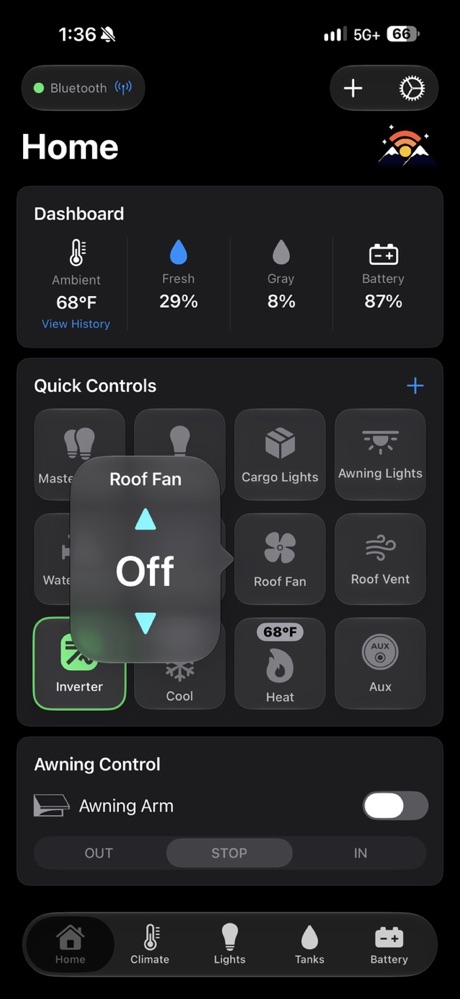
- Touch and hold Roof Fan to set its speed in 10% steps. Setting a speed above 0% turns the fan on.
- To add or remove cards on Home, tap + at the top right.
- The gear at the top right opens Settings.
Climate
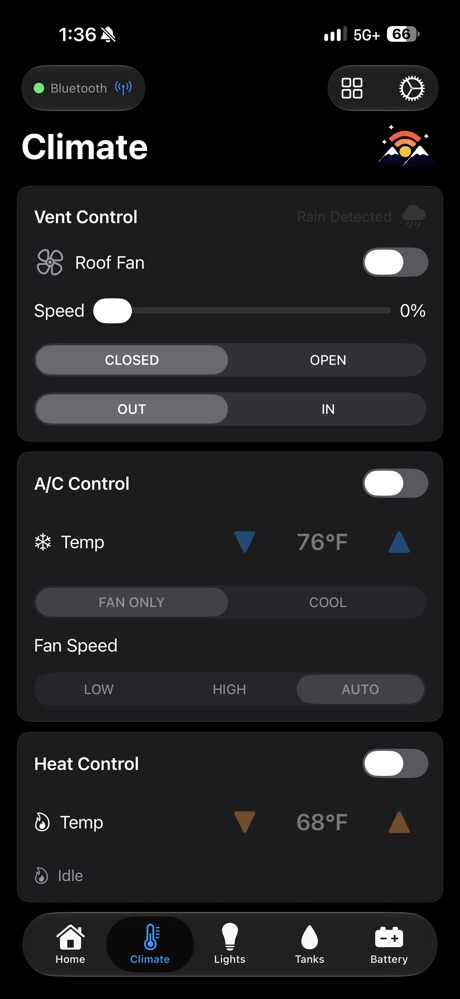
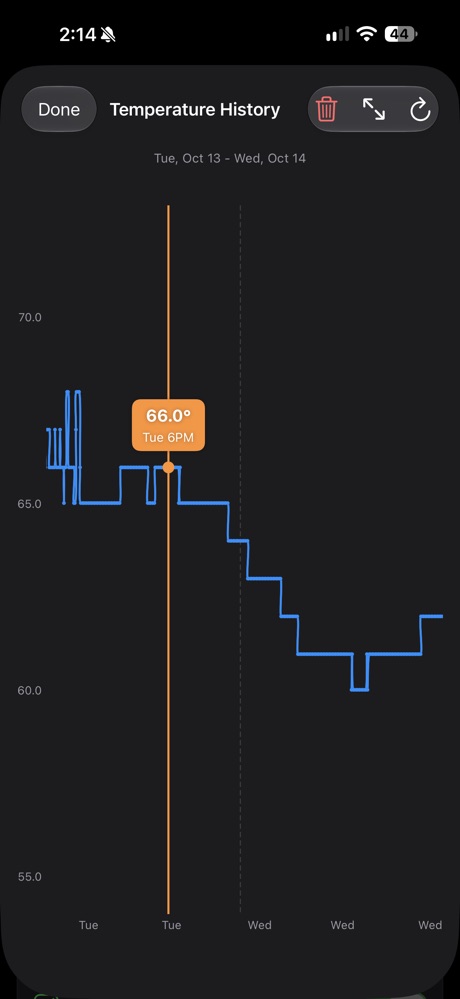
Control the air conditioning, the heat and the roof fan, and open or close the vent. The app shows when rain is detected, and Temperature history lets you scroll back to see how warm or cool the van has been while you were away.
- Setting a temperature: on the A/C Control and Heat Control cards, tap the up or down arrow to change the temperature one degree at a time, or hold an arrow to move faster. The app sends the new temperature to the van a moment after you stop.
- A/C Control: choose COOL or FAN ONLY, and a fan speed of LOW, HIGH or AUTO.
- Heat Control (2022–2023 MODE): turns the furnace on and off and sets the temperature. The card shows Heating while the furnace is running and Idle while it's waiting. After you turn the heat off, wait 3 minutes before switching off the Volta system, so the furnace can shut down fully.
- Eco and Comfort on the ModeCom screen: the ModeCom screen runs the furnace itself, and its Climate page has an Eco / Comfort setting.
- Eco: the furnace stops when the van reaches the temperature you set. Turning the heat off in the app turns everything off.
- Comfort: the screen keeps the furnace running after the van is warm, so the heat comes back faster. Turning the heat off in the app doesn't stop it; only the ModeCom screen can. The app warns you: the Heat tile keeps flashing and reads Heater On, the Heat Control card says Heater running, and a message asks you to turn it off on the screen.
Before you park in a garage or other enclosed space, make sure the furnace is off: the Heat tile isn't flashing, or the ModeCom screen shows the heat off.
You can also change these temperatures from Quick Controls on the Home tab.
Lights and awning
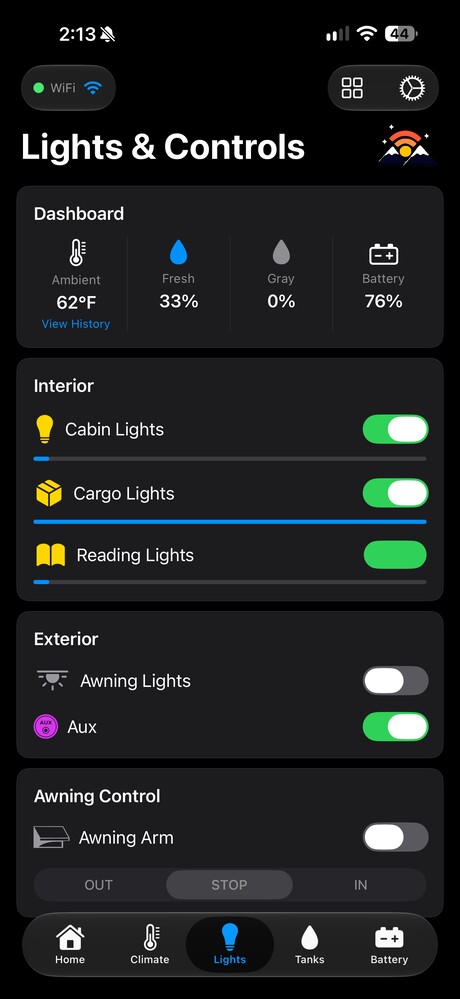
The reading light shows as on or off, but you switch it at the light itself.
To move the awning, arm it first, then extend or retract it. Make sure the area around the van is clear.
Tanks and water
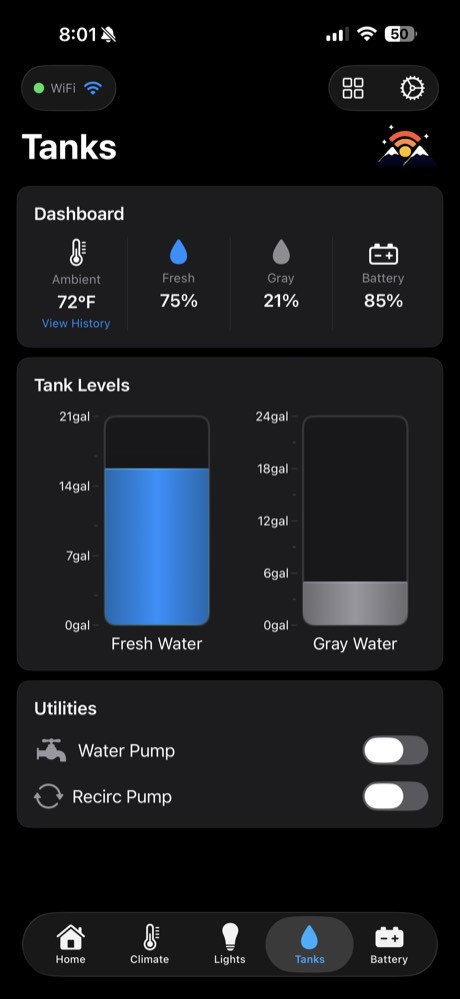
Check your fresh and gray levels from anywhere before you head back to the van. To have the water pump switch itself off if it's left on, see Automations.
Battery and power
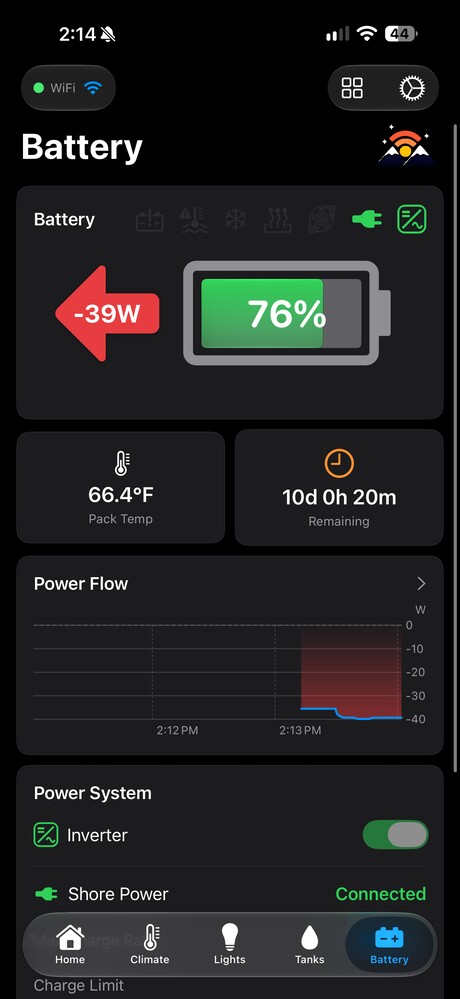
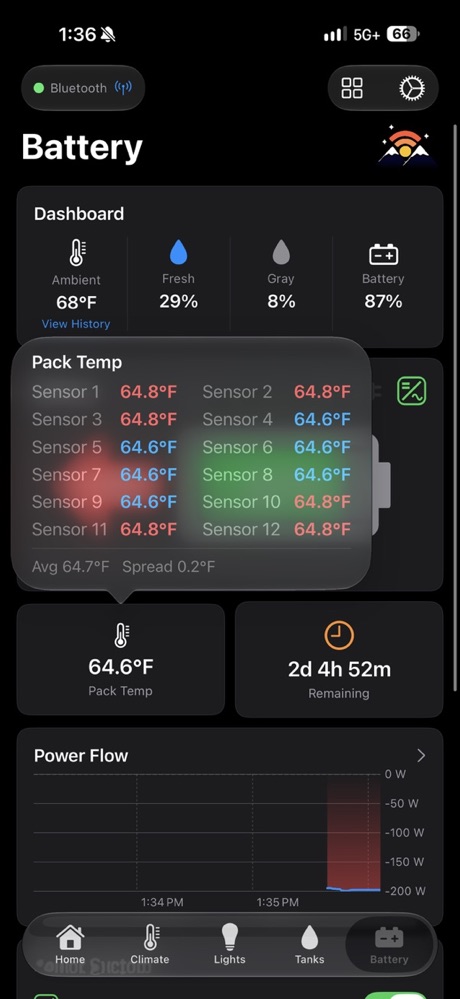
- Pack Temp: tap it to see the temperature of each sensor in the battery, with the hottest in red and the coldest in blue, plus their average and the spread between them.
- Max Charge Rate: limits how fast the battery charges.
- Charge Limit (2022–2023 vans): stops charging at a level you choose, useful when the van is plugged in for long stretches. Slide left to set it. Shore power must be connected to change it. Before you remove the ModeBRIDGE from the van, set it to 100%, so charging isn't left switched off.
Notifications
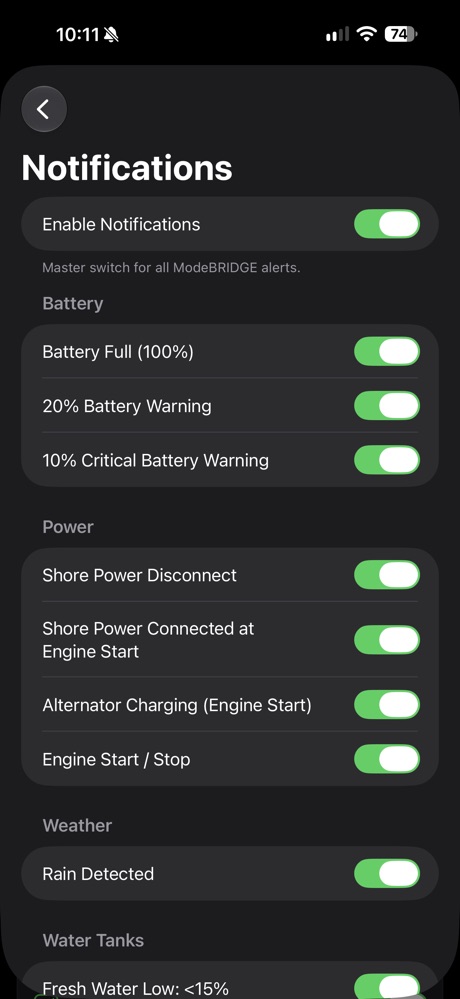
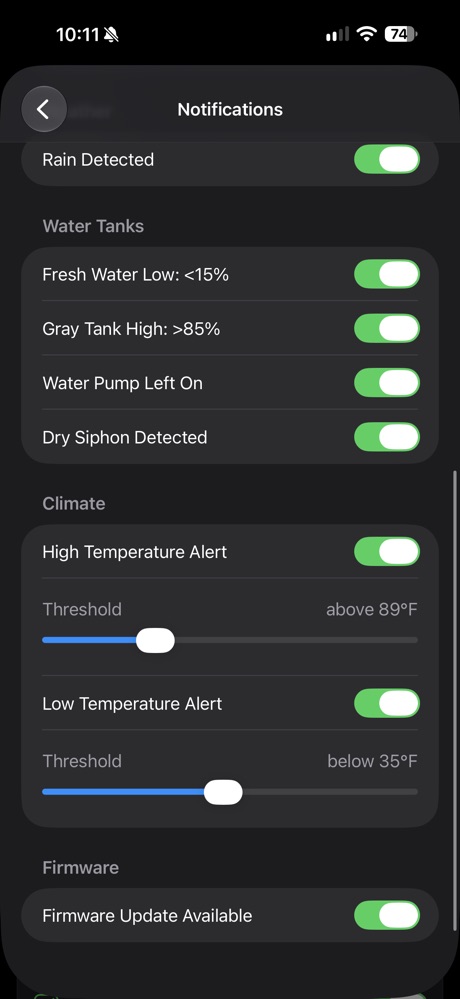
Choose the alerts you want in Settings › Notifications. They reach your phone (and Apple Watch, if you use an iPhone) even when you're away from the van, as long as remote access is working.
- Battery: full, 20% warning, 10% critical warning.
- Power: shore power disconnected, shore power still connected when the engine starts, so you don't drive off plugged in, alternator charging, engine start and stop.
- Weather: rain detected.
- Water: fresh water low, gray tank nearly full, water pump left on, dry siphon.
- Climate: high or low temperature, at a temperature you set. The low-temperature alert goes down to 41°F, because some vans' thermostats can't measure below that; a cabin colder than 41°F shows as "41°F or below".
- Updates: a new ModeBRIDGE update is available.
ModeBRIDGE is not a safety device or alarm. Don't rely on these alerts where a missed one could hurt someone; see the FAQ.
Automations
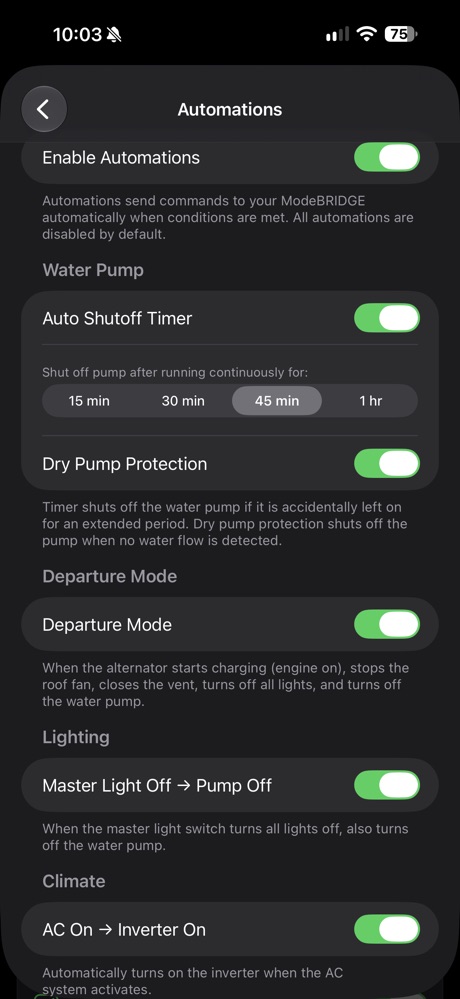
Automations run on the ModeBRIDGE itself, so they work even when your phone isn't connected. They're all off until you turn them on. Go to Settings › Automations; the app needs to be connected to your ModeBRIDGE to change them.
- Auto Shutoff Timer: turns the water pump off after it has run for 15, 30 or 45 minutes, or an hour.
- Dry Pump Protection: turns the water pump off when no water is flowing. If you're filling the tank with the van's siphon, turn this off first: the pump can pull in some air while siphoning, which can trip it and shut the pump off. Turn it back on when you're done.
- Departure Mode: when the engine starts, stops the roof fan, closes the vent, and turns off the lights and the water pump.
- Master Light Off → Pump Off: turning all the lights off at the master switch also turns off the water pump.
- AC On → Inverter On: turns the inverter on when the air conditioning starts.
Updates, Wi-Fi and sharing
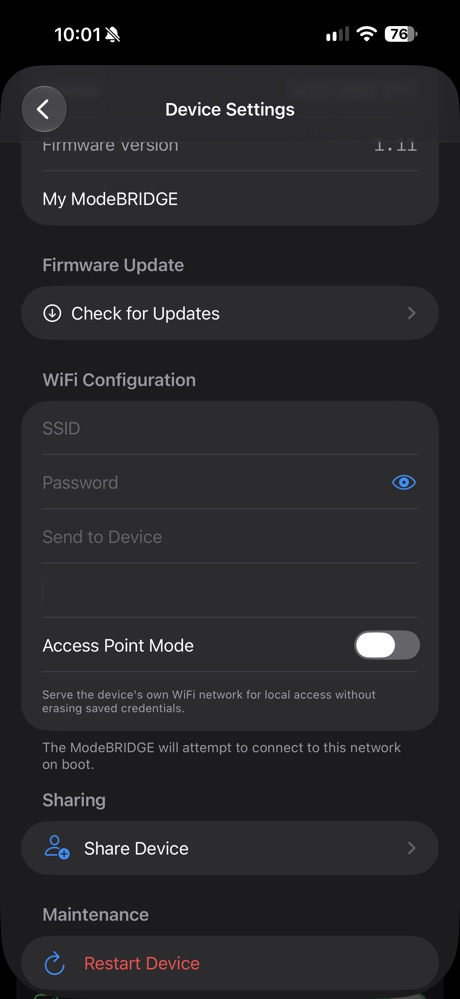
These are on your ModeBRIDGE's page: open Settings and tap it under Devices.
- Stay up to date: get the latest features and bug fixes by keeping your ModeBRIDGE updated. Turn on the Firmware Update Available notification to hear when there's a new one. When the app finds an update, it saves it on your phone, so you can install it at the van later even with no internet. While an update installs, the lights alternate blue and yellow; leave the power on until it finishes.
- Change Wi-Fi network: enter the network's name and password under WiFi Configuration and tap Send to Device. The network must be 2.4 GHz (see the FAQ).
- Share with your household: invite family members by email so they can check on and control the van from their own phone and account.
If something isn’t working
- The app won't connect over Bluetooth: make sure Bluetooth is on and you're in or next to the van. The blue light should be on. If the green light is off, the ModeBRIDGE has no power. If the green light is on but the blue one is off, press the reset button.
- Remote access isn't working: check the yellow light. If it's blinking, the ModeBRIDGE isn't on your Wi-Fi; check the van's router is on and has internet. It reconnects by itself when the router comes back.
- The ModeBRIDGE won't join your Wi-Fi: it needs a 2.4 GHz network. Turn on 2.4 GHz in your router's settings, on an iPhone hotspot turn on Maximize Compatibility, or on an Android hotspot choose a band that includes 2.4 GHz. See the FAQ.
- The ModeCom screen shows something different from the app: the app is right. See the FAQ.
- Shore power doesn't charge the battery after the ModeBRIDGE was removed: if it was removed while the Charge Limit was holding charging off, the charger can stay off. Choose a charge rate on the Volta screen. If it still doesn't charge, unplug shore power, turn the Volta system off and on again, and plug shore power back in.
- Something else: press the reset button, check the FAQ, or email support@modebridge.app.
Regulatory information
ModeBRIDGE contains a certified radio module, Contains FCC ID: 2AC7Z-ESPS3WROOM1. The model number is on the label on the back of the unit. Designed and assembled in the USA.
FCC compliance statement
This device complies with part 15 of the FCC Rules. Operation is subject to the following two conditions: (1) This device may not cause harmful interference, and (2) this device must accept any interference received, including interference that may cause undesired operation.
Changes or modifications
Changes or modifications not expressly approved by the party responsible for compliance could void the user's authority to operate the equipment.
RF exposure
This device meets the government's requirements for exposure to radio waves. This device is designed and manufactured not to exceed the emission limits for exposure to radio frequency (RF) energy set by the Federal Communications Commission of the U.S. Government.
This device complies with FCC radiation exposure limits set forth for an uncontrolled environment. In order to avoid the possibility of exceeding the FCC radio frequency exposure limits, human proximity to the antenna shall not be less than 20 cm during normal operation.
Questions about any of this? Please reach out to support@modebridge.app.
If you're still stuck, please reach out through the contact form and we'll get back to you soon.